
Minimal Launcher
Launch with Ease and Simplicity
Perfect for launching apps and files. Zero setup, zero clutter. Advanced customization is there when you want it.
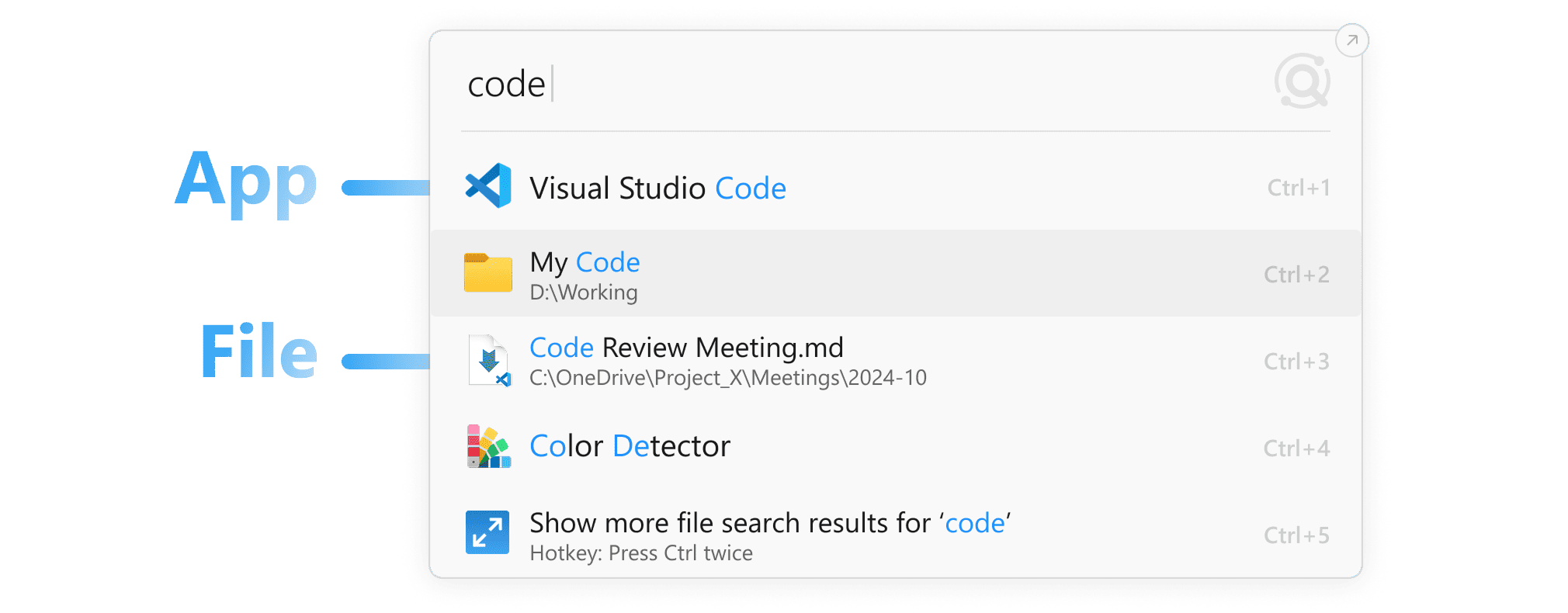
Simple
Just type and search. Apps and files are ranked together.
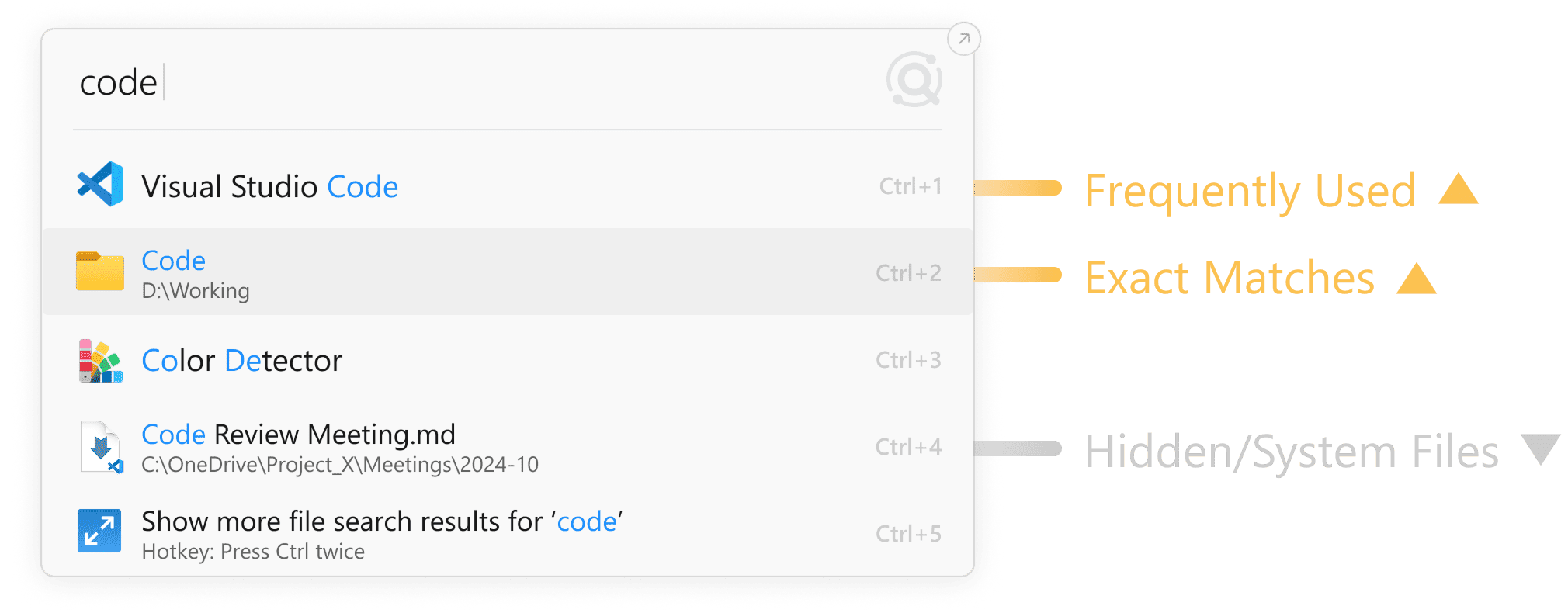
Smart
Intelligent ranking brings what you need to the top.
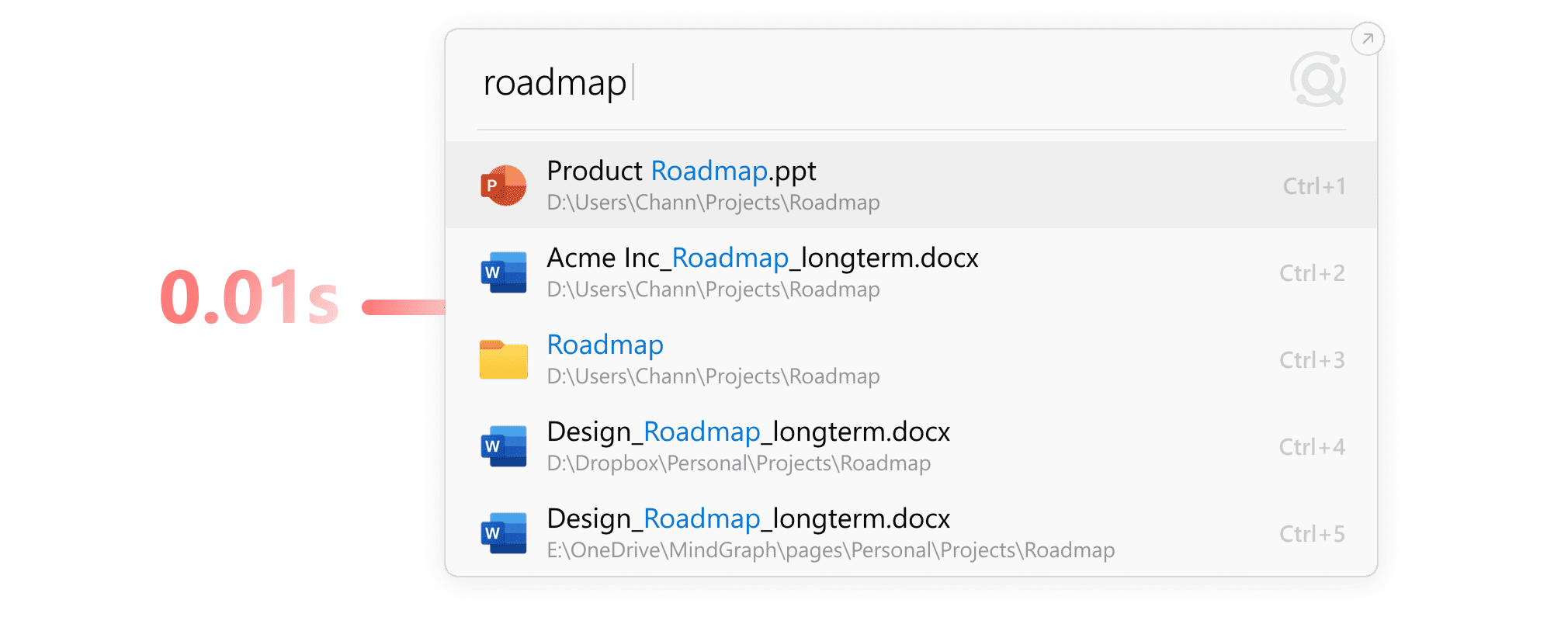
Fast
Find files in 0.01s. Instant results, no delays.
Additional Advanced Features
Learn more →


Commands
Power Your PC with Listary
Free DownloadFAQ
How is Listary's Launcher different from other launchers?
Listary's Launcher is designed to be simple and effortless with no setup, no complex menus, and no extra steps. Unlike other launchers that require you to first enter a file search mode before searching for files, Listary lets you search for both apps and files at the same time. This means no thinking required. Just type what you need, and Listary finds it right away.
What's the difference between the Launcher and File Search Window?
The Launcher is designed for quickly opening apps and files. If you remember the approximate file name, using the Launcher is recommended. It also features smart ranking, making it easier to access frequently used files efficiently.
However, if you have multiple similar files and are unsure which one to open, or if you need to compare files, the File Search Window is more suitable. The Launcher closes automatically after selection, whereas the File Search Window remains open for better file exploration.
Best practice: Start with the Launcher. If you can't find the right file, double-tap Ctrl to switch to the File Search Window, where your query will be preserved.
Does Listary have any advanced usage tips?
1. Using "Path" to narrow search results
Easily refine your search by appending a trailing \ to any keyword, indicating it's part of the parent folder path. This can be used at any point in your search query.
2. Using "Filters" to narrow search results
"Filters" can help you select specific file types, quickly and precisely pinpointing the target file.
3. Fuzzy Matching
Listary supports fuzzy matching and also Chinese Pinyin. Therefore, you can find files using only abbreviations without knowing the whole filename.
4. Preview
Use Alt+P to preview.
5. Actions
Select (Highlight) a search result and open the action menu with Ctrl+O or → or mouse right-click.
6. Optimize efficiency
Keyboard Accessibility: For extreme efficiency, all Listary commands can be done via the keyboard.
Mouse-Friendly: Prefer a GUI? Use the mouse for all operations without memorizing shortcuts.
More questions? Visit our Help site →