Skip to content

Listary for Education

Focus on Learning, Not Digging for Files

One tool to instantly locate assignments, papers, and lecture slides for both learning and teaching.

Download Listary for free

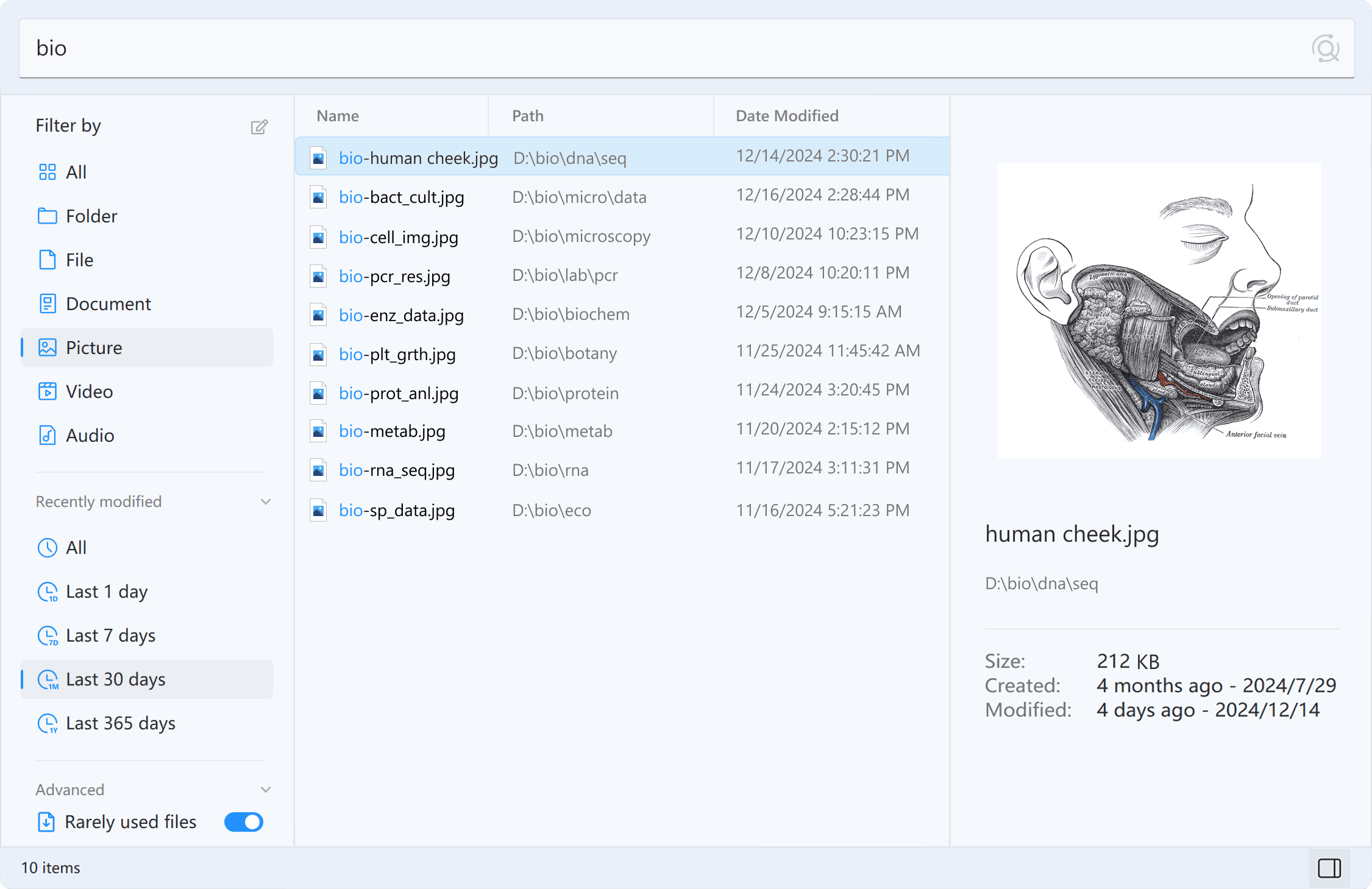
Find your files. Instantly.

From lecture slides to lab reports, find it fast.
Listary File Search results for “bio” with an anatomy image preview

Your Shortcut to Saving and Opening Papers

Listary's Quick Switch lets you skip the hassle and access files instantly when saving, opening, or downloading.

Attach Files Instantly

Enter keywords to instantly find and attach the files you need.
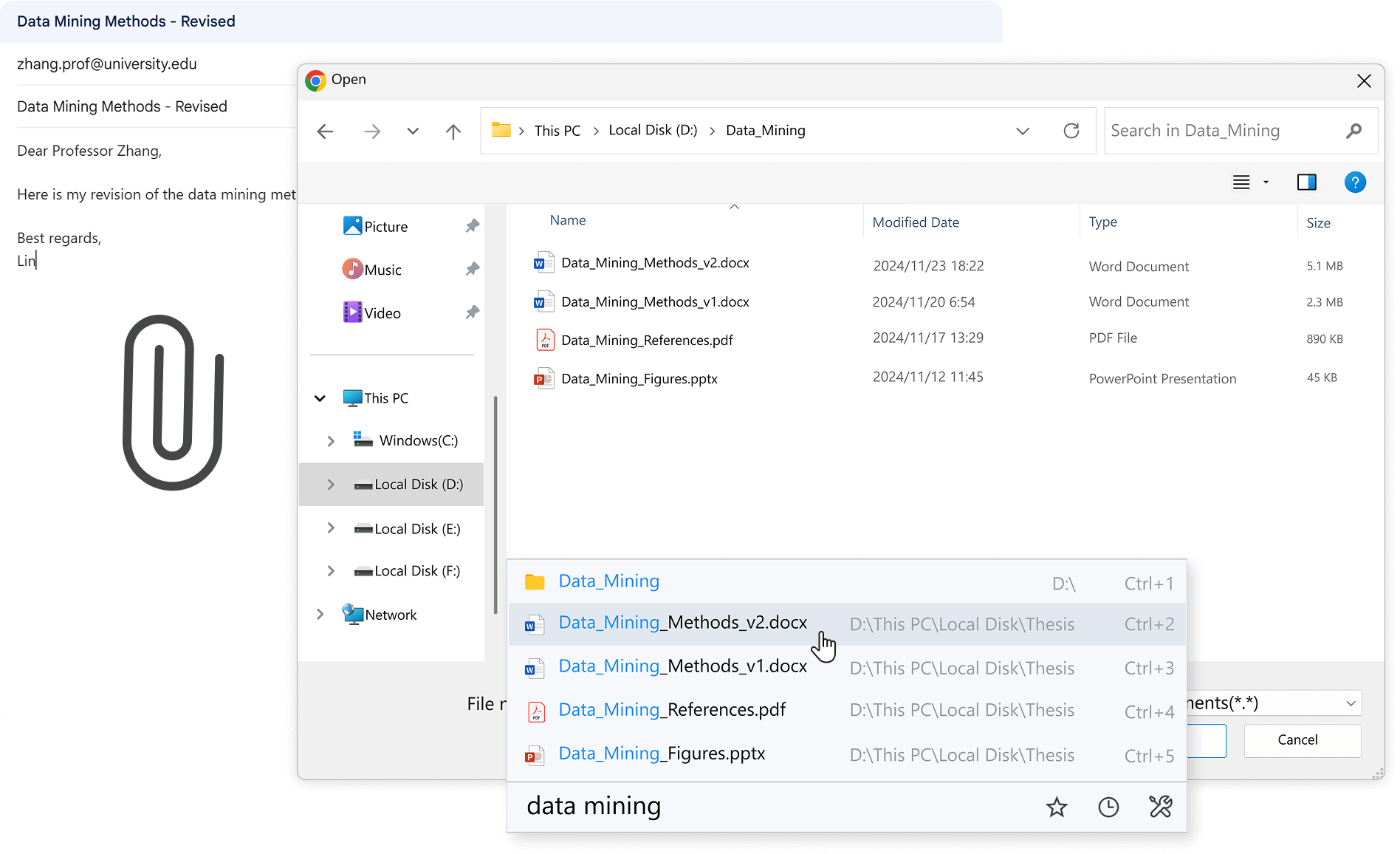
A screenshot illustrating a feature for quickly saving and opening files. The image highlights an email draft about "Data Mining Methods - Revised," with a file attachment process in progress. The "Open" dialog box from Windows File Explorer is shown, displaying a folder named "Data_Mining" with multiple files, including Word documents, a PDF, and a PowerPoint file. A search feature is demonstrated, with the keyword "data mining" instantly bringing up relevant file suggestions for quick selection. The top of the image includes the heading "Your Shortcut to Saving and Opening Papers" and the subheading "Attach Files Instantly," emphasizing the feature's convenience. The background is light blue.

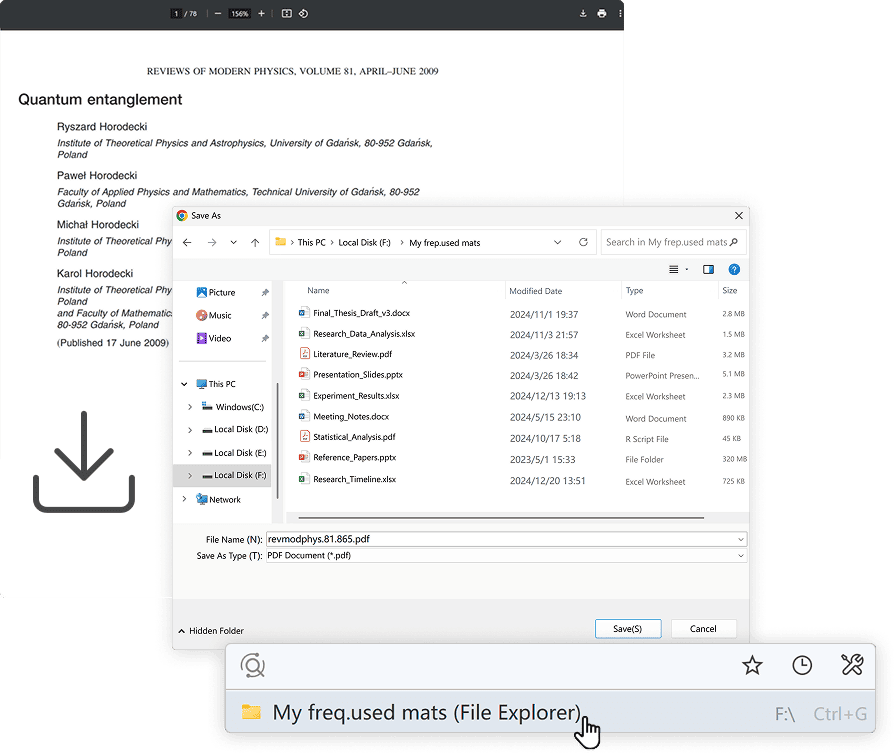
Effortless Downloads

Automatically locate recommended download folders to save time.
A screenshot showcasing an effortless download feature. The top section displays a document titled "Quantum Entanglement" being viewed in a PDF reader. Below, a "Save As" dialog box is open, showing a Windows File Explorer interface with a folder named "My freq.used mats" selected. The interface highlights the automatic suggestion of a recommended download folder to save time. The background is light blue, with the heading "Effortless Downloads" and the subheading "Automatically locate recommended download folders to save time."

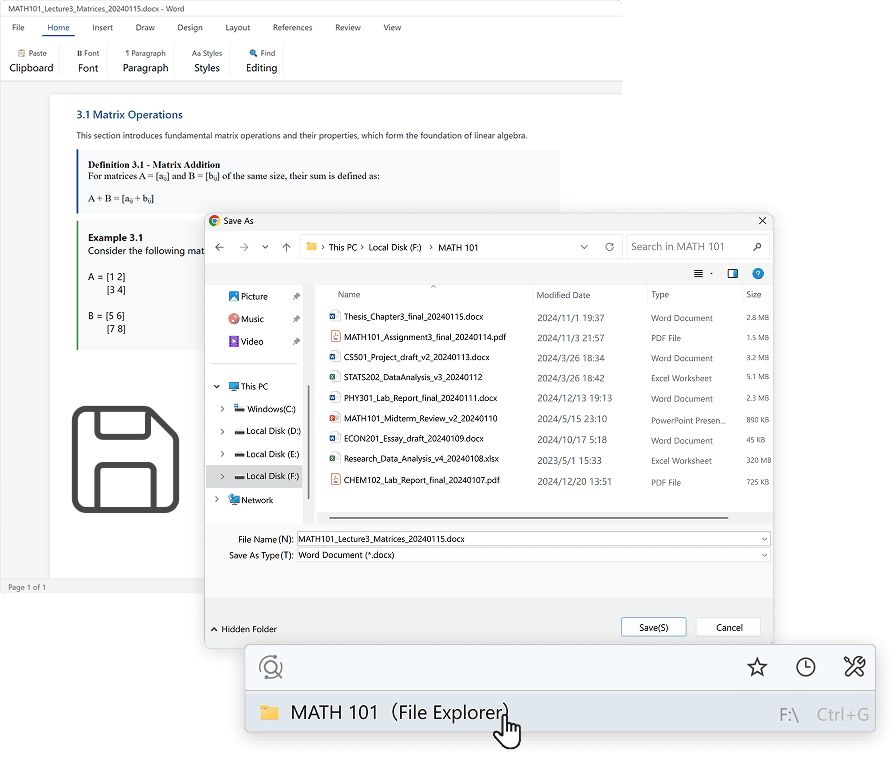
Smart Saves

Quickly access frequently used folders to save your work.
A screenshot showcasing the "Smart Saves" feature for quickly accessing frequently used folders. The image displays a Word document titled "MATH101_Lecture4_Matrices_20240115" being saved. The "Save As" dialog box in Windows File Explorer is open, showing a folder named "MATH 101" containing various files such as Word documents, PDFs, and Excel sheets. A highlighted suggestion for the "MATH 101" folder is displayed at the bottom, emphasizing easy access to frequently used directories. The heading "Smart Saves" and the subheading "Quickly access frequently used folders to save your work" are shown at the top. The background is light blue.

Learn more →

Stay Ahead with Listary

Quickly locate files, launch tools, and search the web with Listary's powerful launcher, all in one place.

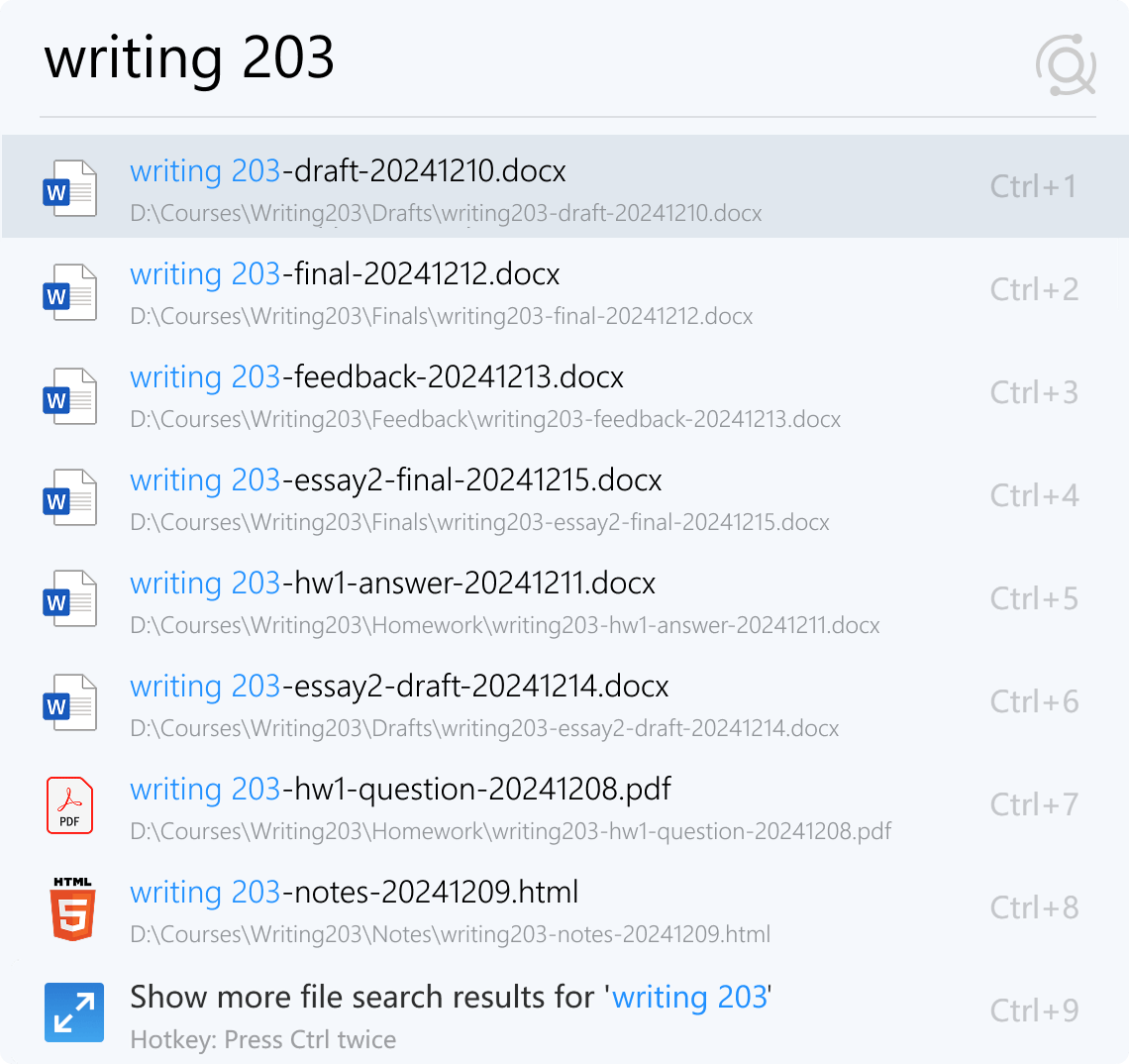
Find Files in a Flash

Quickly locate recent course materials with precision and ease.
Quickly locate recently used or edited files with precision search. Effortlessly access course materials and assignments, saving time and keeping your workflow organized.

Launch Tools Instantly

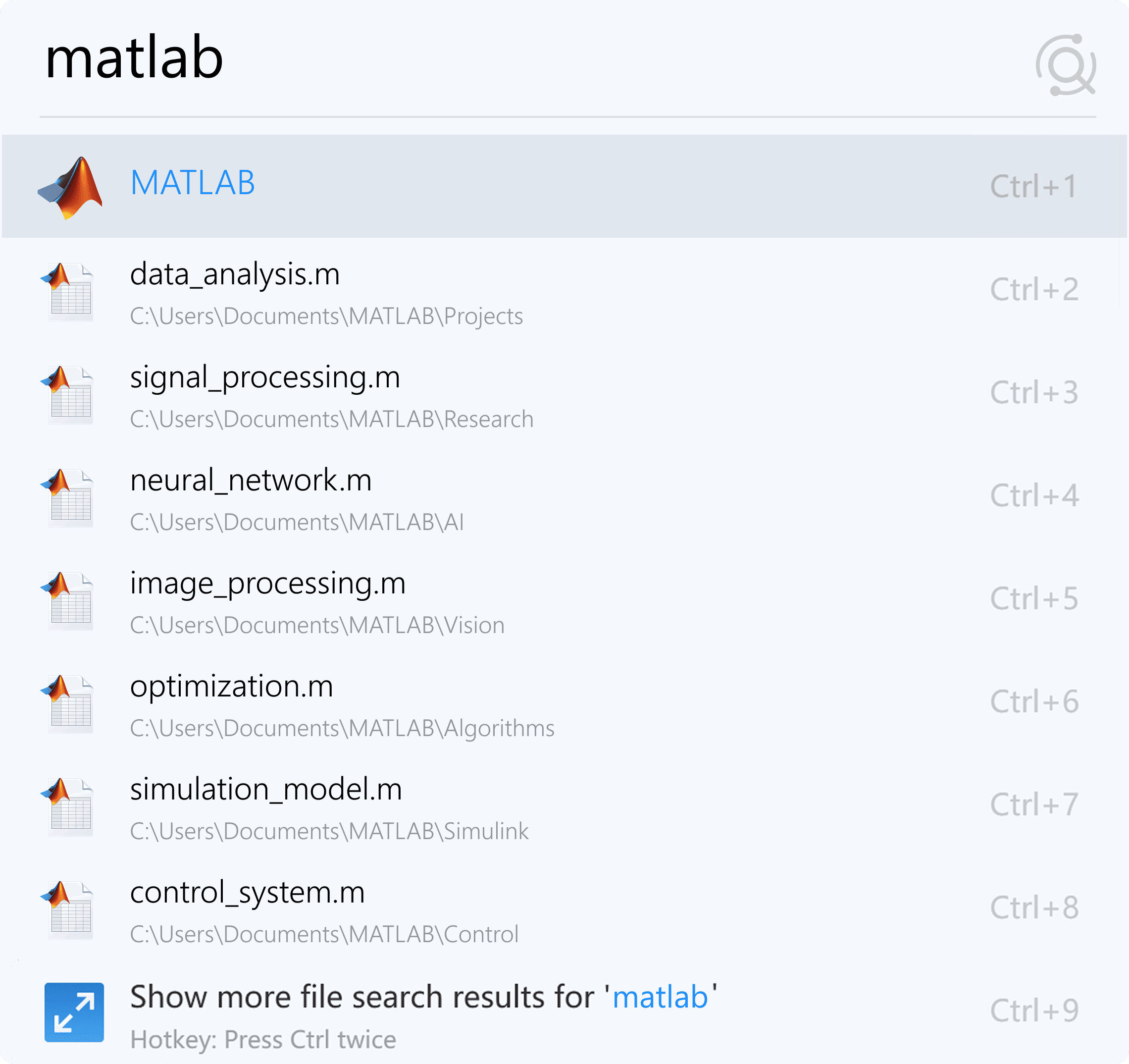
Launch MATLAB, Slides, and more tools in seconds.
Keep essential tools like MATLAB and presentation software at your fingertips. Quickly access frequently used programs and files to streamline your teaching and project workflow.

Quick Web Search

Instantly access internet resources right from your desktop.
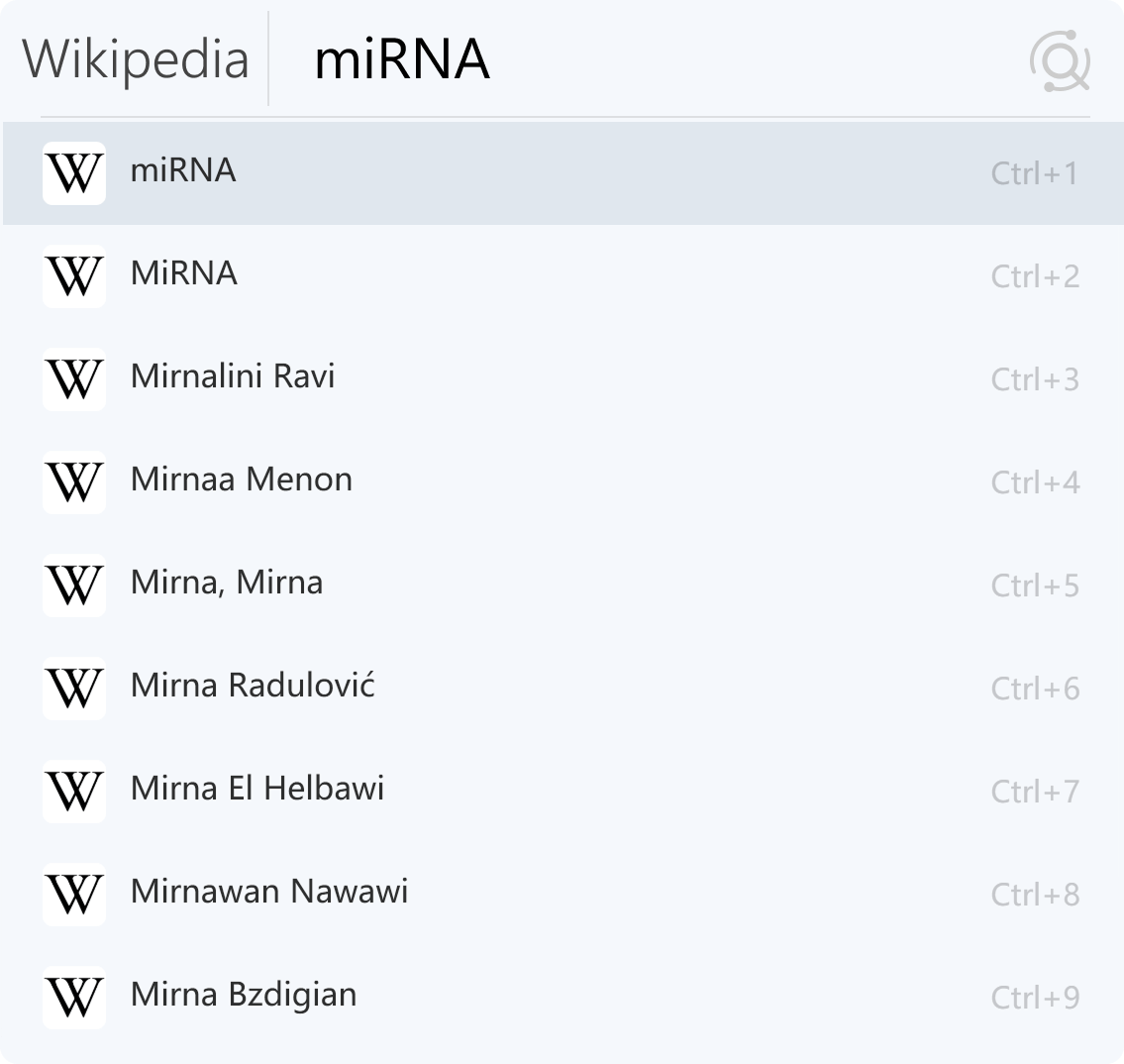
Instantly retrieve online resources with direct access to search engines. Quickly locate information from platforms like Wikipedia, ensuring efficient research and learning.

Learn more →

Unlock Listary's Power on Campus

Free Download

FAQ

Can Listary search inside file contents?

Listary is primarily designed to quickly find and open files or apps by name, path, or format. To search within PDFs, Office documents, or scans, please use Gety, a companion app by the Listary team.

Meanwhile, if you are using Gety, Listary can automatically trigger it to display full-text search results* when no name matches are found, helping you locate the exact file or answer**.

* Only available in V7 beta and may be unstable.
** Only partial results are displayed. The complete full-text search requires using Gety.

Can students or teachers get a discount for Listary Pro?

Students and teachers are eligible for an educational discount. Just email support@listary.com with proof of your status to apply.

Can I share the same license between my home and school computers?

Of course! Your license is tied to your account, and you can activate it on up to 3 devices you own. No need to worry about device limits.

How do I upgrade to Listary Pro after purchase?

Listary Pro will be activated automatically after your purchase. We'll also email you a copy of your license.
Please double-check that your email address is correct when purchasing. If you didn't get the email, please reach out to support@listary.com.

What is your refund policy?

We provide full refunds within 30 days of purchase for Listary Pro, no questions asked. Please send your order number or email account to support@listary.com for a refund.

More questions? Visit our Help site →